
Why does a setting called Capsule AO confuse so many Wuthering Waves players? The name sounds like a character ability or a capsule-themed item, but it is actually a graphics rendering option — contact shadows that appear where surfaces meet, where feet touch ground, and where objects press against nearby geometry. Whether you leave it on or off has real consequences for both image quality and frame-rate stability, and those consequences look very different depending on whether you are playing on a high-end PC or a mid-range phone.
What Capsule AO Means
Capsule AO is a form of ambient occlusion — a technique that darkens the tight corners and contact points where light would naturally struggle to reach. The "capsule" part refers to how the engine approximates character or object volumes as simplified capsule shapes, then calculates where those shapes would cast shadow onto nearby surfaces.
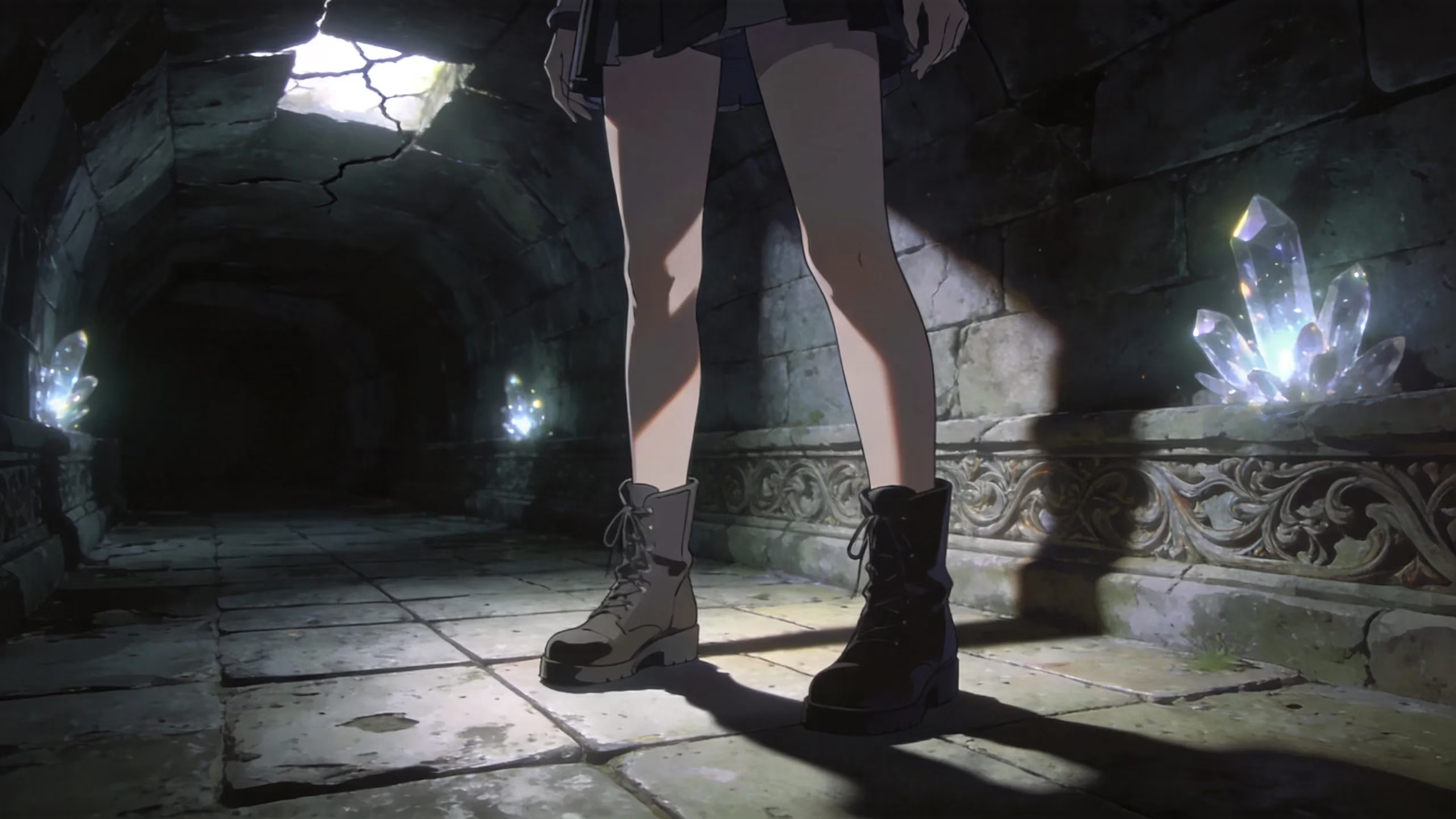
Inside Wuthering Waves, the effect shows up most clearly around feet pressing into the ground, under layered clothing, along wall seams, and wherever a prop or piece of furniture sits against a floor or wall. Those are the contact points with the highest shadow density.
Without the setting, models can look like they are hovering slightly above the environment — a subtle but persistent flatness that is hard to name until you see the alternative.
Capsule AO closes that gap. Characters read as physically present in the scene rather than composited onto it.
Expect subtle changes, not dramatic overhauls. This is not ray tracing. Bright outdoor fields or fast traversal sequences may show almost no visible difference, while a cave corridor or cluttered indoor room reveals the effect clearly because contact points stack up faster in enclosed spaces.
How Capsule AO Works
Rather than computing accurate global lighting for the full scene, the engine wraps each character or relevant object in a simplified capsule volume and checks which nearby surfaces that capsule would shadow. That approximation costs less than full screen-space ambient occlusion methods while still delivering better depth than running with no AO at all. Capsule AO sits in a practical middle ground — not the cheapest option, but not the most demanding one either.
On constrained hardware, that cost starts to matter. Key factors that increase GPU load include:
-
Multiple characters and enemies generating simultaneous shadow contacts in combat
-
Dense environmental props clustered in small areas
-
Mobile devices with tight thermal budgets sustaining the workload over extended sessions
-
Preset configurations that stack Capsule AO on top of other expensive effects
Adding Capsule AO to an already-unstable frame rate sharpens stutter rather than improving scenes. That is the trade-off.
The setting earns its value most at close and mid-range camera distances during exploration. Fast aerial traversal or distant panoramic shots reduce how much contact shadow the eye can even register — worth remembering before you enable it and declare the result disappointing.

Wuthering Waves Capsule AO Visual Impact
Wuthering Waves Capsule AO improves depth, object separation, and character grounding — it does not change texture resolution, color grading, or anti-aliasing quality. Mixing it up with those other settings leads to misplaced frustration when the wrong thing gets toggled.
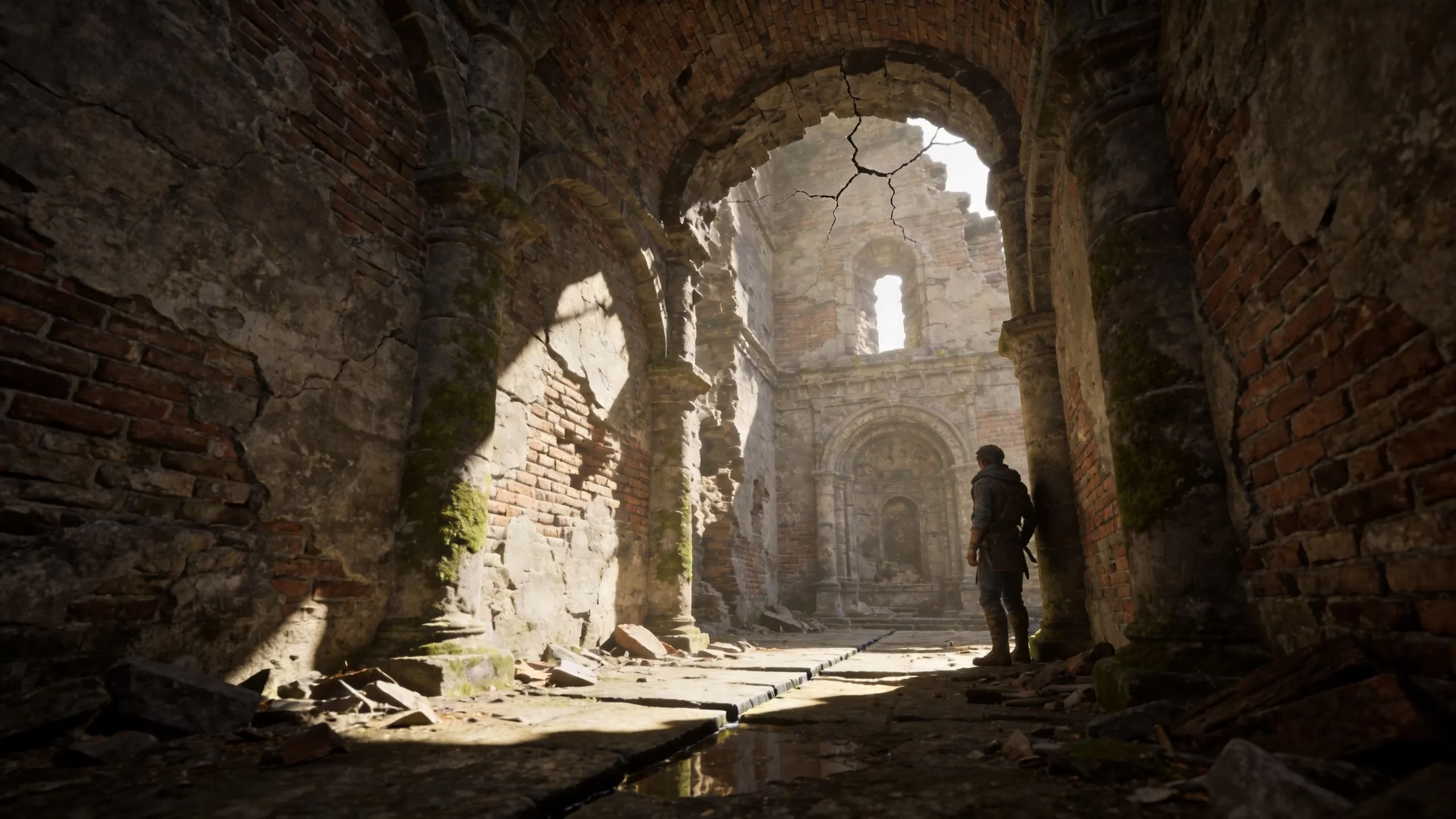
Shaded environments produce the clearest proof-of-concept. Caves, ruins, indoor corridors, and stairwells are loaded with contact points — feet on stone steps, walls meeting floors, objects clustered together — and every one of those contacts gains a soft shadow gradient with the setting active.
Open plains and bright daytime areas are a different story. Contrast is lower, contact shadows wash out in sunlight, and the effect retreats into the background. Comparing a character on a flat grass field with and without Capsule AO is a bad test. Comparing the same character beside a cluttered stone wall is a useful one.
Do not pin image blur, shimmer, or color fringing on this setting. Capsule AO is not anti-aliasing, not sharpening, and not tone-mapping. If the game looks soft or noisy, the culprit is elsewhere in the graphics menu.
Best Capsule AO Settings
Enable Capsule AO when your device already holds a stable frame rate — 60 FPS is a reasonable benchmark — and you spend meaningful time in caves, ruins, interiors, or areas where object density creates lots of shadow contacts. Screenshots, story cutscenes, and slow exploration segments all benefit from the added depth.
Turn it off if battery drain, device heat, or combat responsiveness takes priority over polish. On a phone that already runs warm after 20 minutes, Capsule AO is not the upgrade it looks like on paper.
Four quick checks before deciding:
-
Is my frame rate stable under normal play conditions?
-
Does my device stay at an acceptable temperature after 15–20 minutes?
-
Is battery drain acceptable for my typical session length?
-
Can I actually see a shadow difference in the environments I frequent most?
Mobile players on mid-range hardware should resist enabling every visual option at once. Lower one heavier setting first — shadow quality or post-processing tend to cost more — then re-evaluate Capsule AO as a separate step. Stacking multiple expensive settings simultaneously makes it impossible to identify which one is hurting performance.
PC players have a wider trade-off menu. Shadow detail, resolution scale, and post-processing effects can each deliver a bigger visual return per performance unit than Capsule AO alone, so weigh them against each other rather than treating Capsule AO as the default depth-improvement lever.
How to Test Capsule AO
Open the graphics menu, enable Capsule AO, walk to a wall or object cluster, then toggle it off from the same spot. That side-by-side comparison at a single fixed location is more informative than any amount of reading about it.
Pick a repeatable test environment rather than an open field. A staircase edge, a character standing still on stone flooring, or a cluttered indoor room all concentrate contact shadows in one frame, making the difference legible. Flat outdoor terrain hides the effect and produces false negatives.
Run the test for 3 to 5 minutes of active play, not a single paused screenshot. Frame pacing issues, thermal throttling, and battery draw only show up over time.
Clear signal to disable: if combat feels worse and the visual change reads as tiny or irrelevant, Capsule AO is not earning its cost on your current setup.
Re-test after major game patches. Wuthering Waves updates can change rendering optimization, and a setting that felt expensive on an older build may run more efficiently after engine improvements. No publicly verifiable data is available at this time regarding specific patch optimization changes to Capsule AO, so checking in-game performance after updates is the only reliable method.
Capsule AO Mobile vs. PC Performance
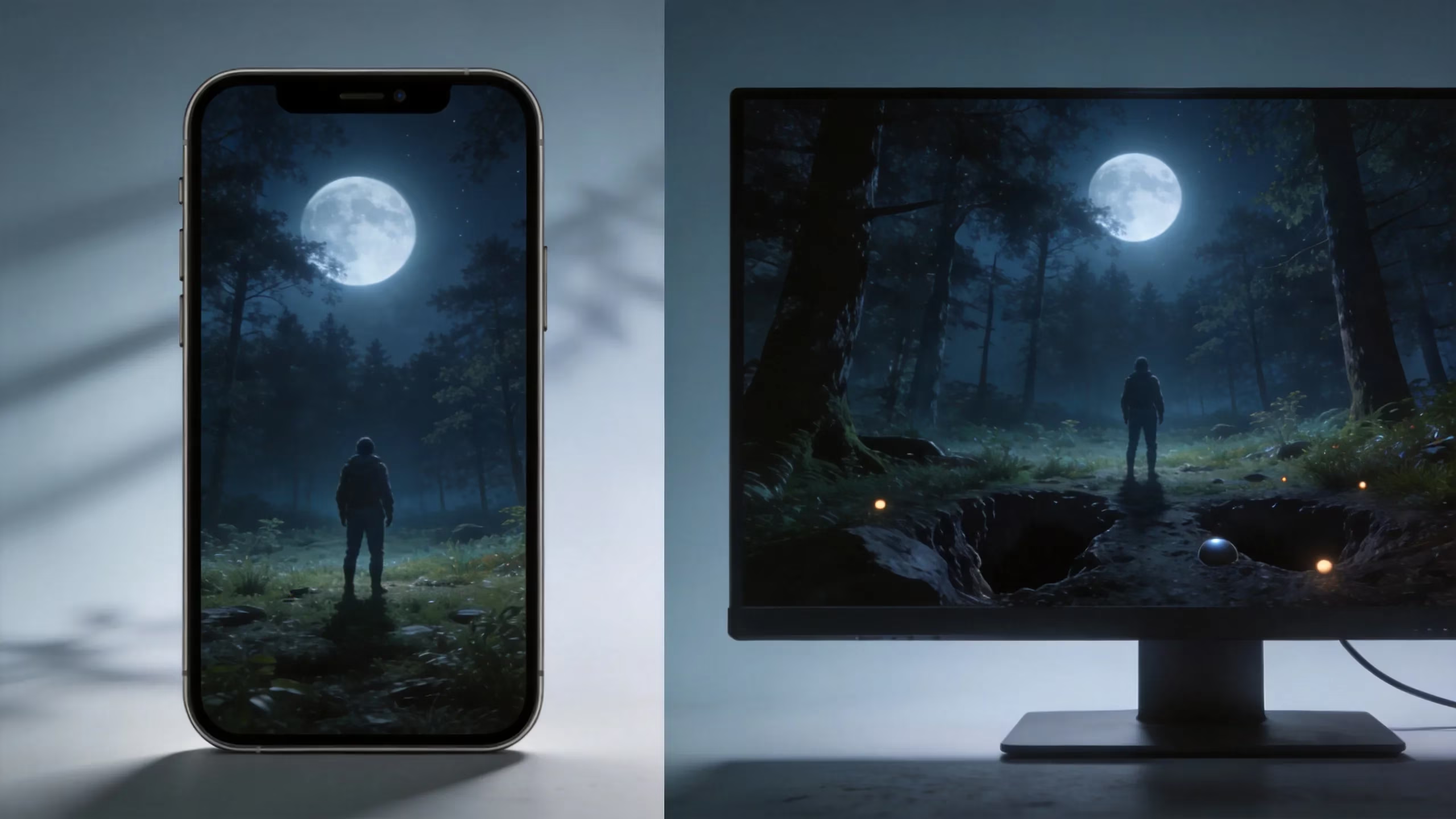
On mobile, Capsule AO trades visual depth for heat, battery drain, and potential frame drops — and that trade worsens during longer sessions. The first few minutes can feel acceptable, then thermal throttling kicks in and stability degrades.
Phones and tablets hit their thermal ceilings faster than desktop hardware. A setting that runs without issue for five minutes of gentle exploration can become a liability during a 20-minute combat-heavy session, because the device cannot shed heat fast enough to maintain consistent GPU clock speeds.
That heat ceiling is the real deciding factor on mobile. Not frame rate in the first minute — sustained stability over a full session.
Here is how the two platforms compare at a glance:
| Factor | Mobile | PC |
|---|---|---|
| Visual gain | Minor (small screen reduces perceptibility) | Noticeable (larger display, more pixels per shadow) |
| GPU cost | Meaningful on mid-range chips | Low on stable mid-to-high-end hardware |
| Thermal risk | High during extended sessions | Low with adequate cooling |
| Battery impact | Measurable drain increase | Not applicable |
| Recommendation | Off on warm-running devices | On if baseline is already stable |
Test Capsule AO independently on each platform you use. The correct choice on PC is not automatically the correct choice on mobile — assuming otherwise is a common trap that leads to unnecessary performance hits on whichever device you tested less carefully.
Common Capsule AO Confusion
Some players assume the label hints at something gameplay-related — a capsule ability, a buff aura, a stamina mechanic. It has nothing to do with any of that. Capsule AO is a graphics rendering option with zero effect on character stats, combat, or world interaction.
It is only a visual setting. Full stop.
A few of the most common misconceptions worth clearing up:
-
"It relights the whole scene" — Capsule AO narrows shadow work to local contact points; the broader lighting mood of an area stays unchanged.
-
"Missing it from the menu means it was removed" — Platform restrictions or a locked preset may hide the toggle; it is not absent from the game.
-
"It makes everything sharper" — Only edge and overlap shadows gain detail; textures, color, and resolution are unaffected.
When players say the game looks better with Capsule AO enabled, the specific improvement is that characters and objects feel physically grounded rather than composited onto the scene. Sharpness, color, and texture detail are not what changes.
Disabling Capsule AO for maximum competitive smoothness is a completely valid call. Nothing in the visual effect contributes to gameplay performance, reaction time, or any mechanical advantage. Turning it off is not missing content — it is a legitimate preference.
Conclusion
Enable Capsule AO if your game holds near 60 FPS and you spend real time in caves, ruins, or interior spaces where contact shadows actually appear. Disable it on any phone that already runs hot, drains battery fast, or shows frame inconsistency — the depth improvement is not worth a degraded play session. When in doubt, run the 3-to-5-minute active test rather than deciding from a screenshot.