
If you regularly alt-tab out of Wuthering Waves while doing dailies, auto-farming, or just letting Tacet Discord runs play out, learning how to mute Wuthering Waves in background is honestly one of the easiest QoL fixes you can make. By default, the game's UE5 audio setup can keep pushing out music, ambient noise, and combat sounds even after the window is no longer in focus, which gets annoying fast when you're trying to watch something, hop into Discord, or browse in peace. This guide walks through the practical fixes available in 2026, including the in-game option, Windows Volume Mixer, the OK-WW tool's background mute setting, and how mobile behavior works on different platforms.
How to Mute Wuthering Waves in Background
In-Game Audio Settings Path
The easiest fix is built right into the game. Open Settings → Audio, then look for "Mute in Background" or the equivalent wording if your client uses a different language. Once you turn it on, Wuthering Waves should stop all audio output from Client-Win64-Shipping.exe as soon as the game loses focus, whether that's from Alt+Tab, clicking another app on the taskbar, or just hitting the Windows key.
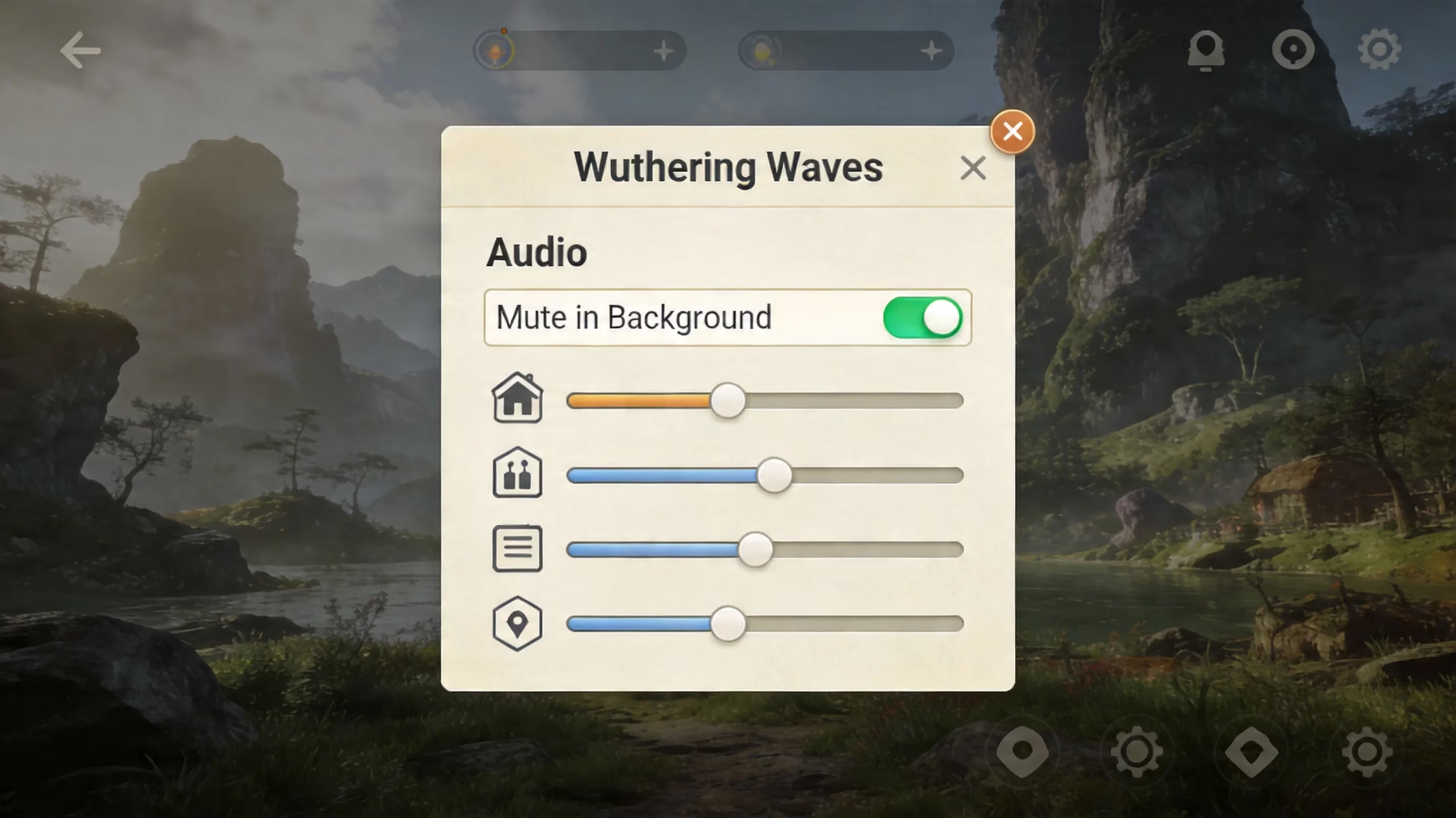
That setting is stored locally, so you usually only need to enable it once. After that, it should stay on between sessions without needing anything from the launcher.
One thing to keep in mind: this is an all-or-nothing mute. It does not split BGM, SFX, voice lines, or ambient audio into separate background rules. If you want the game quiet while still keeping voice chat from another app active, you're better off adjusting the in-game channel sliders and then using the Windows Volume Mixer method later in this guide.
PC, Mobile, and Launcher Differences
On the Windows version, whether you launch through the official Kuro Games launcher or Epic Games Store, the in-game toggle is the cleanest solution. The launcher itself does not manage audio behavior, so the actual sound handling comes from the game client and Windows. On mobile, things work differently. iOS usually suspends app audio shortly after the app goes into the background unless the app has special background audio permission, while Android can vary a lot depending on the phone brand and battery settings.
PS5 is more limited here. As of 2026, there is no exposed background mute toggle in the Wuthering Waves console client, so if you're on PS5, you'll need to rely on the console's own audio controls or your TV/monitor setup instead.
It's also worth checking how the game reacts when you Alt+Tab. On PC, Fullscreen mode tends to trigger the mute behavior much more reliably because the game clearly loses focus. In Borderless Windowed, the compositor can still treat the window as visible even when another app is covering it, and that can lead to the game continuing to play sound when it really shouldn't. If your mute setting seems inconsistent, this is usually the first thing to test.
Wuthering Waves Background Audio Settings by Platform
Here is the quick platform breakdown for how background audio works in Wuthering Waves right now:
| Platform | Default Background Audio | Native Mute Toggle | Notes |
|---|---|---|---|
| Windows (PC) | Continues playing | Yes — in-game Audio settings | Borderless mode may ignore the toggle |
| Android | Continues briefly, then OS suspends | OS-managed | Battery saver behavior can change results |
| iOS | OS suspends app audio within seconds | OS-managed | Background audio needs explicit permission |
| PS5 | Continues playing | No in-game toggle | Use console-level audio controls |
On Windows, borderless and fullscreen do not behave the same way. Borderless can sometimes stop the game from correctly detecting focus loss, so if you want the mute toggle to work every time, switching to Fullscreen under Settings → Display is usually the safer play. If that still doesn't solve it, Windows Volume Mixer is the fallback that almost always works.
On mobile, the OS is doing most of the heavy lifting. Android power management and iOS background suspension rules matter more than anything inside the game itself, so once the app is backgrounded, the platform usually decides what happens next.

Windows Volume Mixer for Wuthering Waves in Background
Per-App Mute Method
If the in-game setting is missing, greyed out, or just not doing its job, Windows gives you another option through the Volume Mixer. This works separately from the game's own settings, which makes it especially useful when focus detection is acting weird.
To use it:
-
Right-click the speaker icon in the Windows system tray.
-
Select "Open Volume Mixer."
-
Make sure Wuthering Waves is running and currently producing audio.
-
Find the session for
Client-Win64-Shipping.exe. -
Click the speaker icon under that app to mute it.
The mute applies immediately. As long as that same audio session stays alive, the game will remain muted even if it keeps running in the background.
The catch is that this is not fully permanent. Once you close the game and launch it again, Windows usually creates a fresh audio session, and the mute state often resets with it. So this is a reliable workaround, but not a true set-it-and-forget-it solution across full restarts.
Audio Ducking Interaction
Windows also has audio ducking, which can lower the volume of other apps whenever a communications app detects voice activity. That includes Wuthering Waves. If you've noticed the game getting quieter during Discord calls or other VoIP sessions, this is probably why.
You can change that under Control Panel → Sound → Communications and set it to "Do nothing" if you don't want Windows interfering. On the flip side, if you actually like that behavior, you can leave it on and let voice chat apps suppress the game's audio automatically whenever you're talking.
OK-WW Background Mute Setting
Mute Game while in Background
If you're using OK-WW, you already have another option. The tool includes an Auto-Mute feature described as being able to mute the game automatically while it runs in the background. Inside OK-WW, this appears as "Mute Game while in Background." Under the hood, it uses the Windows Core Audio API through the pycaw library to control the Wuthering Waves audio session directly.
Setting Path in OK-WW
You can find this setting in OK-WW's global configuration panel from the main window. Instead of depending on the game's own audio menu, OK-WW watches for focus changes and then adjusts the mute state of the Wuthering Waves process on its own.
Basically, it works as a second layer of control. That means even if you never touch the in-game audio settings, OK-WW can still handle background muting for you.
Default Audio Device Requirement
There is one important requirement here: Windows needs to have a default audio playback device set. This became a known issue in OK-WW issue #1073 from February 2026. If your system has no default output endpoint — maybe your headphones were unplugged, your speakers are disconnected, or the driver reset itself — the pycaw call to GetDefaultAudioEndpoint can throw a _ctypes.COMError.
When that happens, the problem doesn't just affect muting. It can also break OK-WW's window connection flow and leave the tool stuck loading because it keeps failing to detect the game properly. The community fix is pretty simple:
-
Connect a valid audio output device so Windows registers a default endpoint
-
Or disable "Mute Game while in Background" if you do not actually need it
2026 Bug Context — v3.1.x
This bug was especially relevant in the v3.1.19 to v3.1.24 range of OK-WW releases. In those versions, the handle_mute → set_mute_state chain did not have proper error handling for systems without a default audio device.
That changed in v3.1.25 and v3.1.26, which added better fallback behavior so missing audio endpoints no longer break the whole window detection process. If you're hitting the stuck-loading issue in 2026, the first thing you should check is whether you're on the latest OK-WW release and whether Windows has a default playback device set before turning the background mute feature back on.
Wuthering Waves Background Sound Not Muting
Toggle Missing or Greyed Out
If "Mute in Background" is missing or greyed out, the usual culprit is either a client version mismatch or a damaged local config file. In most cases, verifying the game files through the launcher fixes it.
There is also a platform-specific exception worth noting. On the cloud gaming version (云游戏), the toggle may not appear at all because the audio pipeline is handled through streaming rather than a local native audio session.
No Default Output Device
This one shows up more often than people expect. If Windows does not detect a default audio output device when the game launches, the game's own audio subsystem can behave unpredictably. In some cases, the audio session never initializes correctly, which makes any background mute setting look broken even when the toggle is enabled.
Go to Settings → System → Sound → Output and make sure a valid playback device is selected. That alone can solve a surprising number of weird audio issues.
Overlay, Capture, and Window Issues
Third-party overlays can also mess with focus detection. Tools like MSI Afterburner with RivaTuner Statistics Server, NVIDIA GeForce Experience, or Steam's in-game overlay may cause Wuthering Waves to think it is still the active window even after you've switched away.
Capture software can do something similar. Apps using BitBlt or WGC capture sometimes keep a reference to the game window that interferes with how focus-loss events are reported. If the mute toggle refuses to work, disabling overlays and capture tools before testing is a very good troubleshooting step.
Restart, Verify, Relaunch Order
If background muting still is not working, this is the cleanest order to test things:
-
Close overlays and screen capture tools.
-
Verify game file integrity through the launcher.
-
Relaunch Wuthering Waves.
-
Re-enable the in-game background mute toggle.
-
Confirm that Windows has an active default playback device.
That order matters because it rules out the common interference points before you start digging into deeper Windows audio problems.
Wuthering Waves Background Mute FAQ
Why does sound still play even after enabling the in-game toggle?
Most of the time, this comes down to window mode. In Borderless Windowed, focus-loss detection can be inconsistent, so the mute does not always trigger. Switching the game to Fullscreen under Settings → Display usually fixes it. If it still happens in fullscreen, an overlay or capture tool is likely getting in the way.
Alt+Tab is not muting the game — what is happening?
In Borderless Windowed mode, Alt+Tab can move the game behind other windows without fully changing its focus state the way exclusive fullscreen does. As a result, the client may still treat itself as active. When that happens, muting Client-Win64-Shipping.exe through Windows Volume Mixer is the most dependable workaround.
How can the game be muted while keeping voice chat active?
The in-game background mute setting silences everything at once. If you want more control, lower BGM and SFX inside the game's Audio menu, then keep your voice app — like Discord — on its own audio path. You can also mute only the Wuthering Waves process in Windows Volume Mixer, which leaves voice chat untouched.
What are the background audio limits on mobile?
On iOS, the OS usually suspends app audio after a short delay unless the app has declared a background audio entitlement, which Wuthering Waves does not. Android is less consistent and depends heavily on the device maker and battery profile. Phones from Xiaomi, Huawei, or Samsung with aggressive battery optimization may cut the audio almost immediately, while stock Android can let it continue a bit longer. There is no user-facing mobile toggle that forces background silence, but in practice, most mobile players do not need one because the OS handles it.
Conclusion
For most PC Rovers, the best fix is still the obvious one: turn on Settings → Audio → Mute in Background and run the game in Fullscreen so Alt+Tab properly triggers focus loss. If that option is missing or unreliable — especially in borderless mode — Windows Volume Mixer gives you a direct way to mute Client-Win64-Shipping.exe on a per-session basis. If you're using OK-WW, its "Mute Game while in Background" option can do the same thing automatically, as long as your system has a valid default playback device and you're on v3.1.26 or later to avoid the older pycaw COMError issue. On mobile, the OS usually handles background audio suspension for you, while PS5 players are still stuck using system-level audio controls. If nothing seems to work, start with the basics: disable overlays, verify the game files, and make sure Windows sees a real default output device. Happy farming, Rovers.